

PDFPEN IS NOW NITRO
PDFpen products have been rebranded to Nitro Pro Essentials and Nitro PDF Pro. The all-purpose PDF editor for Mac, iPad & iPhone. Add signatures, text, and images. Make changes and correct typos. OCR scanned docs. Fill out and sign forms.
Looking for Nitro PDF Pro for your iPhone & iPad?
Download Nitro for your iPhone, iPad and iPod Touch today.

The Features Users Need at the Value You Want
Whether you’re working with contracts, forms, spreadsheets, blueprints, or beyond, PDFpen gives you the tools to simplify PDF editing and signing.
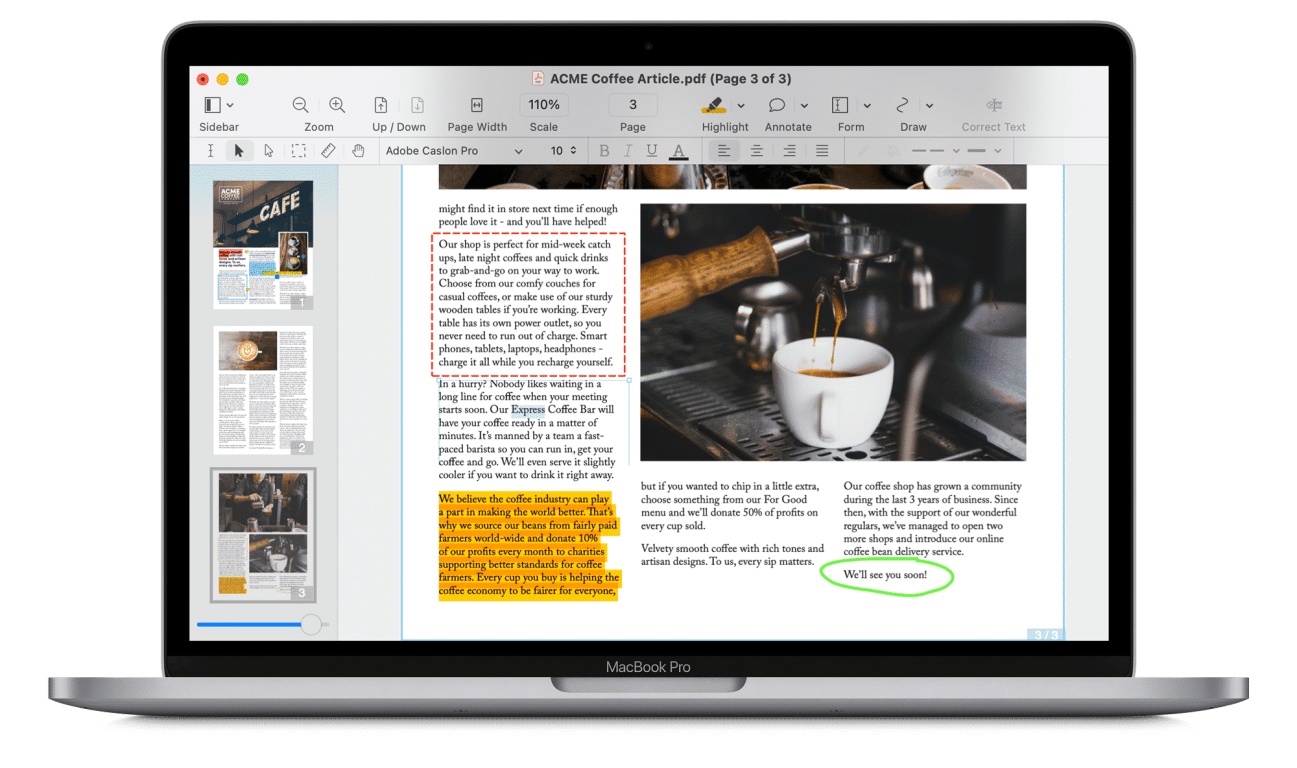
EDIT PDF FILES WITH EASE
More
- Mark up documents with highlighting, underscoring and strikethrough
- Add text, images and signatures to PDF
- Correct text in original PDF with editable text blocks
- Move, resize, copy and delete images in original PDF
- Copy and paste rich text; retain fonts and formatting when copying from PDFs, including columns
- Add, edit, preview and extract file attachments and annotations
- Record and playback audio annotations
- Add notes, comments, and cloud annotations
- Snap objects in place with guides
- Add page numbers, bookmarks, headers and footers, line numbers and watermarks

SCAN & OCR — PREVIEW TEXT
More
- Perform OCR (Optical Character Recognition) on scanned documents singly or in batch OCR
- Edit OCR text from your scanned pages
- Scan directly from Image Capture or any Mac-compatible scanner
- Adjust resolution, color depth and contrast, skew, and size of an image or scanned document
- Context-sensitive popup-menus enable quick edits
- Automate PDF manipulations with AppleScript and JavaScript Automation
- Compress PDF documents for smaller file sizes
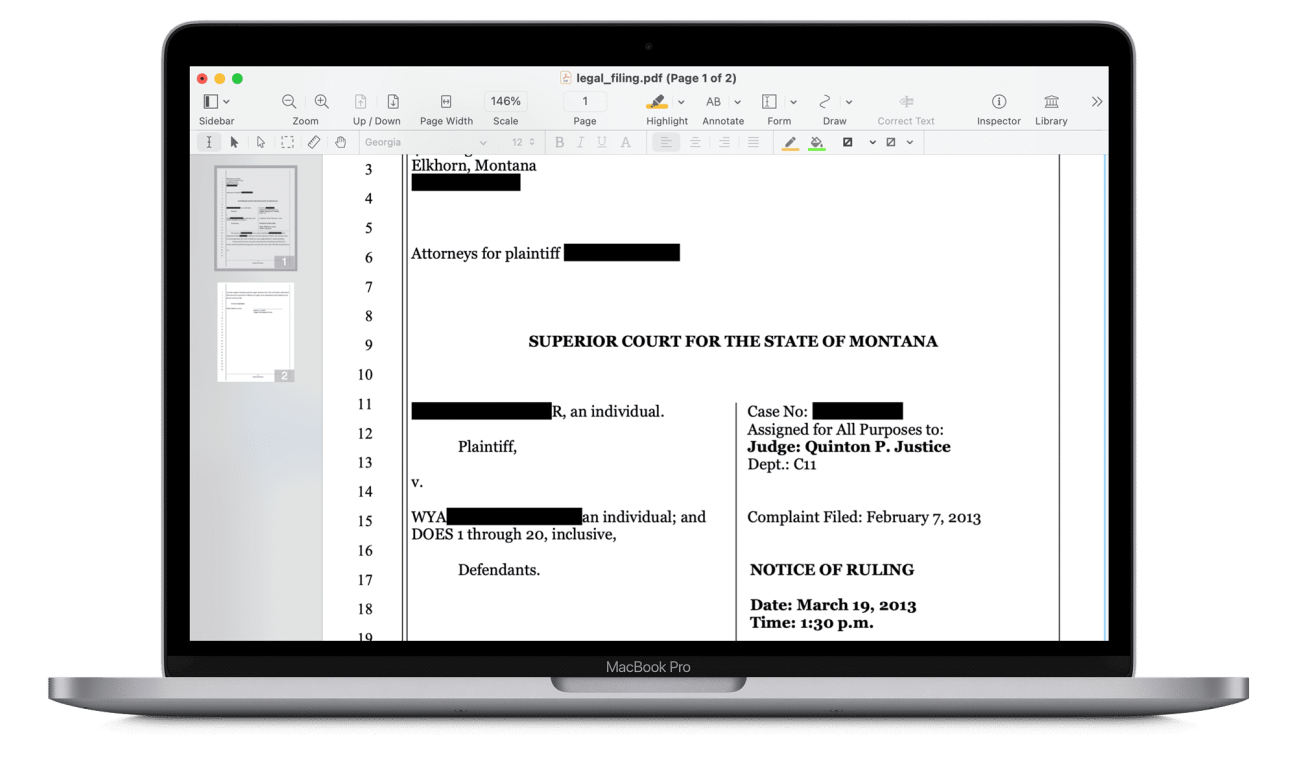
REDACT PERSONAL INFORMATION
More
- Redact or erase text, including OCR text
- Password protect a document with up to 256-bit AES encryption
- Edit document permissions to restrict saving, printing, copying, etc.
- Full screen mode, as well as zoom to document width and zoom to actual document size
- Print notes and comments with or without the original text
- Print a list of all annotations along with the document
- Add (and print) notes and comments

SIGN & FILL FORMS
More
- Validate digital signatures for authenticity and trust of digitally signed documents
- Digitally sign documents using AATL or create a self-signed certificate
- Fill out interactive PDF forms and sign them
- Apply business-related and sign here stamps via the Library
- Save frequently-used images, signatures, objects and text in the Library
- Sync Library items with PDFpen for iPad & iPhone via iCloud
- Use iCloud or Dropbox for seamless editing with PDFpen for iPad & iPhone

AUTO-GENERATE FILLABLE FORM FIELDS
More
- Convert websites to multi-page PDFs, complete with hyperlinks
- Create and edit cross-platform fillable PDF forms
- Export PDFs to Microsoft® Word (.docx) while offline, and to Microsoft® Excel (.xlsx), Microsoft® PowerPoint (.pptx), and PDF Archive (PDF/A) formats with an Internet connection
- Create form fields automatically in a non-interactive form
- Create and edit document Table of Contents
- Create Portfolio documents, combining related files together

DRAW, HIGHLIGHT, SCRIBBLE, CORRECT TEXT
More
- Mark up documents with highlighting, underscoring and strikethrough
- Add text, images and signatures to PDF
- Correct text in original PDF with editable text blocksMove, resize, copy and delete images in original PDF
- Copy and paste rich text; retain fonts and formatting when copying from PDFs, including columns
- Preview and extract file attachments and annotations
- Record and playback audio annotations
- Add notes, comments, and cloud annotations
- Snap objects in place with guides
- Add page numbers, bookmarks, headers and footers, line numbers and watermarks
SCAN & OCR — PREVIEW TEXT
More
- Perform OCR (Optical Character Recognition) on scanned documents
- Viewable OCR text layer for proofing OCR text from scanned pages
- Scan directly from Image Capture or any Mac-compatible scanner
- Adjust resolution, color depth and contrast, skew, and size of an image or scanned document
- Context-sensitive popup-menus enable quick edits
- Compress PDF documents for smaller file sizes
REDACT PERSONAL INFORMATION
More
- Redact or erase text, including OCR text
- Password protect a document with up to 256-bit AES encryption
- Full screen mode, as well as zoom to document width and zoom to actual document size
- Print notes and comments with or without the original text
- Print a list of all annotations along with the document
- Add (and print) notes and comments
SIGN & FILL FORMS
More
- Validate digital signatures for authenticity and trust of digitally signed documents
- Digitally sign documents using AATL or create a self-signed certificate
- Fill out interactive PDF forms and sign them
- Apply business-related and sign here stamps via the Library
- Save frequently-used images, signatures, objects and text in the Library
- Sync Library items with PDFpen for iPad & iPhone via iCloud
- Use iCloud or Dropbox for seamless editing with PDFpen for iPad & iPhone
REORDER & DELETE PAGES — MERGE PDFS
More
- Insert page numbers and specify positioning and format, including Roman numerals and Bates Numbering
- Insert and remove pages; re-order pages in a PDF by drag & drop; combine PDFs
- Measure distances with the measurement tool, including scale within architectural documents
- Export to Microsoft® Word (.doc, .docx) format (must be licensed user)
- Automate PDF manipulations with AppleScript and JavaScript Automation
- Save PDFs directly to Evernote
 Feature Comparison
|
Essentials
|
Pro
|
|---|---|---|
$TBD user/month |
$TBD user/month |
|
|
Edit PDF files
|
||
|
Review, Markup, and Annotate PDFs
|
||
|
Sign and fill out forms
|
||
|
Scan and OCR
|
||
|
Add and edit images
|
||
|
Create PDFs and Combine Files
|
||
|
Keep PDFs secure
|
||
|
Redact and highlight
|
||
|
Redact sensitive information
|
||
|
Convert to Microsoft® Word
|
||
|
Convert to images
|
||
|
Attach files and audio
|
||
|
Add links
|
||
|
Digitally sign and certify documents
|
||
|
Compress PDF files
|
||
|
Build and Fill PDF forms
|
||
|
Batch OCR & edit OCR
|
||
|
Convert to Microsoft Excel and PowerPoint
|
||
|
Convert to PDF/A
|
||
|
Turn websites into PDFs
|
||
|
Permissions: add and edit
|
||
|
Create & edit tables of content & bookmarks
|
||
|
Create links from URLs
|
||
|
PDF Portfolios
|
I PREFER YOUR APP FOR ITS SIMPLICITY, EFFICIENCY, AND OCR.
S. Rivest, Montreal, Canada